Part 1 — First Conversation
Goal: Let's start with the basics first and get Kenzy to respond to something simple like "Hey Kenzy, what time is it?"
You'll need the checklist from the setup overview: a Linux computer, a microphone/speaker (ideally a USB speakerphone), and a language model for the "thinking" — this guide uses the OpenAI default, but any compatible provider or a local model works (details).
1. Basic install
Plug in your speakerphone first (so setup can find it), then run:
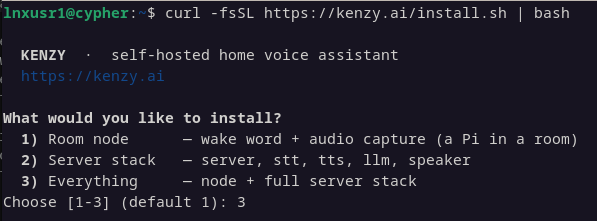
Pick what fits your setup:
| Choose it when | ||
|---|---|---|
| 1) Room node | This machine is a device in a room — a mic and speaker, nothing else | Needs a server to exist first |
| 2) Server stack | This machine does the thinking, but you'll listen and speak somewhere else | Install a room node afterwards, on that other machine |
| 3) Everything | This machine is both — the simplest way to start |
If your microphone and speaker are plugged into the same computer that will do the thinking, choose 3 and you're done in one pass. If they're on different machines — say a mini-PC in a cupboard and a speakerphone in the kitchen — install the server stack first, then run the same command on the room machine and choose room node. The rest of this guide is written for a single machine; with two, everything is the same except that the audio steps happen on the room machine.
Whichever you pick, the installer:
- creates a private Python environment and installs Kenzy from PyPI,
- downloads the wake-word and voice-identification models,
- creates your config home at
~/.config/kenzy(all your settings live there), - sets the services to start automatically, and starts them now.
A server install prints a join token near the end — the password room devices use to connect. You don't need to copy it now; the dashboard can show it to you any time. (A room node asks you to paste it.)
2. Open the dashboard
In a browser on the same network, open:
The one-line installer enables TLS by default and generates a self-signed certificate, so your browser will show a one-time warning.
Log in with admin / password.
✓ Checkpoint
You should see the fleet view: a card for this computer's room node, and health indicators for the four backend services (STT, TTS, LLM, Speaker) — all green within a minute or so of starting. If a service shows unhealthy or the page won't load, see Troubleshooting.
Two things to do while you're here:
- Change the password — Settings → change password. The dashboard is reachable from your whole network by default, so don't leave it on the default login.
- Name your room — open the node's Configure page and set its room name (e.g. "office"). Kenzy uses room names in conversation and for announcements.
3. Connect the language model
Kenzy needs a large language model — her "brain." Any compatible provider works: a third-party service (OpenAI, Claude, OpenRouter, …) or a model running on your own hardware (Ollama). This guide follows the installer's default, OpenAI, purely because it's the fastest route to a working setup — one key, no downloads. Using something else? Setting Up the Language Model.
Wait — isn't Kenzy supposed to be local?
It is — every stage can run on your own hardware, and we're only using a cloud brain because it's the easiest way to get you started. You can switch providers and bring it local when you're ready. Setting up a local LLM is a bit more involved, but we're here for you. Check out Running Fully Local for more information.
The installer already asked
Newer installs ask this question during setup — provider chosen, key pasted, done. If that was you, skip ahead to the next step.
Okay, fine print out of the way. If you're using OpenAI (or most cloud providers) then you'll need to grab an API key from your provider's account page — for OpenAI that's:
→ platform.openai.com → API keys → create
Give it to Kenzy right in the dashboard:
- Set the API key (if needed)
- Go to Settings
- Scroll down to API keys
- Find the
OPENAI_API_KEYentry and paste in your key - Save.
- Restart the services
- Services tab
- Restart the
llmandttsservices (so they recognize your key change).
Prefer the terminal?
Edit the text file ~/.config/kenzy/.env and set OPENAI_API_KEY there.
Restart the services with systemctl --user restart 'kenzy-*'
4. Calibrate the audio
Every room, mic, and speaker is different — the default listening thresholds are almost never your room's. Two minutes in the dashboard fixes that, and it's also how Kenzy learns one important fact about your hardware.
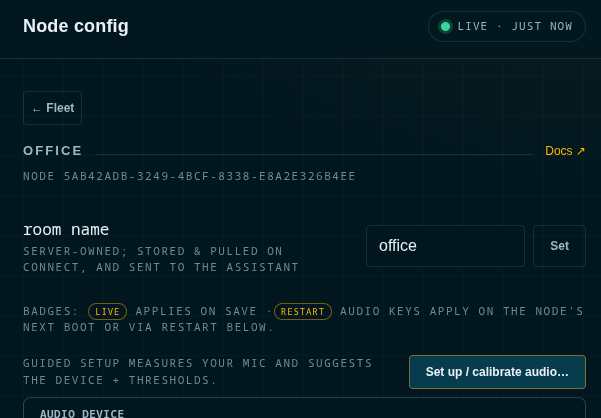
On the node's Configure page:
- Check the audio device. The "Audio device" section lists what the node detected — make sure your speakerphone is selected (not a webcam mic or HDMI output). Picking a device also fills in its supported sample rates.
- Run Set up / calibrate audio… and follow the prompts: a few seconds of quiet so she can measure your room's background noise, then say the wake word a few times so she can hear how you sound from where you actually stand. She applies the measured thresholds herself — no numbers to guess.
Configuration
It is strongly advised to use Kenzy with a speakerphone that has automatic echo cancelling or AEC for the best experience.
✓ Checkpoint
Calibration finishes with a spoken/on-screen confirmation and asks you to try the wake word — a live check that the new settings actually hear you. Details on every phase: calibrating a node's audio.
5. Say hello
Now talk to it. Say:
"Hey Kenzie" … (you'll hear a chime) … "what time is it?"
✓ Checkpoint
Chime after the wake word, spoken answer a moment later. If there's no chime, see Kenzy doesn't hear the wake word; if it chimes but never answers, see It hears me but never replies.
That's a working Kenzy. Everything below is optional.
Where you are: a working Kenzy in one room. When you're ready for more rooms — and for her to know who's talking — Continue to Part 2 — People & Rooms.